
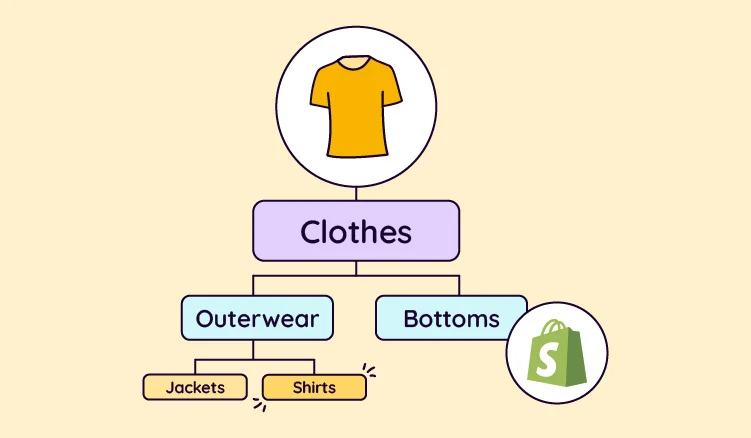
In e‑commerce, visuals can make or break a shopper’s experience. For Shopify store owners, one often overlooked strategy is automating carousel or banner images for each product category. Instead of showing the same generic image across all collections, having category-specific visuals can help guide shoppers, strengthen branding, and improve engagement.
Why Category-Specific Visuals Matter
Carousel or hero images take up prime space on collection pages. They set the first impression and help visitors understand the theme of the products they are browsing. Stores that use tailored visuals for each category—like lifestyle photos for "summer dresses" or product flat lays for "gadgets"—can make the shopping experience more intuitive and engaging.
Approaches to Auto-Match Images on Shopify
There are three main ways to automatically display the right visuals for different categories:
Use Shopify Featured Images
Shopify allows each collection to have a featured image. By configuring your theme to use this image as the banner or first slide in a carousel, you can ensure:
- Each collection displays its own visual automatically.
- Updating the featured image in Shopify admin updates the front-end display without editing theme code.
This approach is simple and works well for most stores. The key is to pick clear, high-quality images and keep dimensions consistent to avoid layout issues.
Use Metafields for More Control
If you want more flexibility, Shopify’s metafields are very useful. You can:
- Create a collection metafield of type “image”.
- Upload multiple images for each collection.
- Connect these metafields to carousel sections in your theme editor.
This way, each category can have its own carousel slides without needing to touch code. It’s a scalable solution as your store grows.
Use Carousel Apps with Targeting Rules
Several Shopify apps allow you to set different banners or slides for each collection:
- Apps like Carousify let you assign slideshows per collection or product page.
- Many slider apps support rules to show visuals automatically based on the category.
This approach is ideal for merchants who want automation without developer work.
Practical Tips for Best Results
Maintain Visual Consistency
Keep colors, fonts, and filters consistent across categories. Even with dynamic banners, a consistent style makes your store look polished.Match Imagery to Category
Choose images that fit the product type and context. Clothing works well with lifestyle photos, electronics with product-in-use shots, and home decor with mood imagery.Optimize for Performance
Large images can slow page speed. Compress assets, use responsive images, and make sure the carousel loads efficiently. Faster pages improve both user experience and search rankings.
Wrap-Up
Automating carousel banners for Shopify categories isn’t just about aesthetics—it helps improve user experience, strengthens branding, and reduces manual work. Whether you use featured images, metafields, or apps, category-specific visuals make your store feel more curated and shopper-friendly.